SoCTAssist User Guide
SoCTAssist is a desktop app designed specifically to help Teaching Assistants manage their students' information, homework, attendance, and consultation sessions more efficiently.
If you are a Teaching Assistant who can type fast, SoCTAssist can get your contact management tasks done faster than traditional Graphical User Interface (GUI) apps while still having the benefits of a GUI.
Quick Start
Ensure you have Java
17or above installed in your Computer.
Windows users: Ensure you have the precise JDK version prescribed here.Mac users: Ensure you have the precise JDK version prescribed here.
Download the latest
.jarfile from here.Copy the file to the folder you want to use as the home folder for your SoCTAssist.
Open a command terminal, using command
cd+ the path to get into the folder you put the jar file in, and use thejava -jar soctassist.jarcommand to run the application.
Assuming the folder path is/Users/your_username/Documents/Folder, the commands will be:
Example for Mac/Linux:cd /Users/your_username/Documents/Folder java -jar soctassist.jarExample for Windows:
cd C:\Users\your_username\Documents\Folder
java -jar soctassist.jar
A GUI similar to the below should appear in a few seconds.
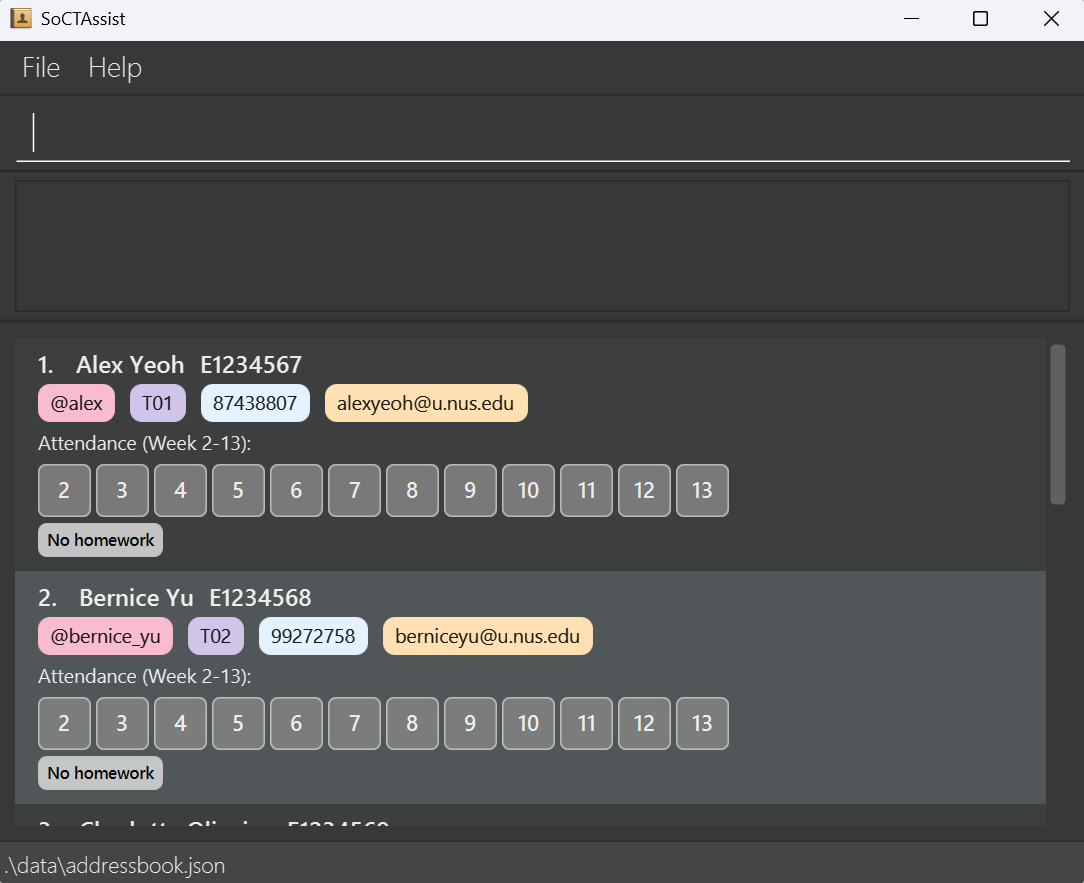
Type the command in the command box and press Enter to execute it. e.g. typing
helpand pressing Enter will open the help window.
Some example commands you can try:list: Lists all contacts.add_student n/John Doe i/E1234567 t/@john g/T01 p/98765432 e/johnd@u.nus.edu: Adds a contact namedJohn Doeto the SoCTAssist.delete 3: Deletes the 3rd contact shown in the current list.clear: Deletes all contacts.exit: Exits the app.
Refer to the Features below for details of each command.
Command Summary
| Action | Format | Example |
|---|---|---|
| Display help message | help | help |
| List students | list | list |
| List consultations | list_consult | list_consult |
| Add student | add_student n/NAME i/NUSNETID t/TELEGRAM g/GROUPID [p/PHONE_NUMBER] [e/EMAIL] | add_student n/James Ho i/E1234567 t/@jame g/T02 [p/22224444] [e/jamesho@u.nus.edu] |
| Edit student | edit_student INDEX [n/NAME] [i/NUSNETID] [t/TELEGRAM] [p/PHONE_NUMBER] [e/EMAIL] | edit_student 2 n/James Lee e/jameslee@u.nus.edu |
| Delete student | delete INDEX | delete 3 |
| Find students by name | find KEYWORD [MORE_KEYWORDS] | find James Jake |
| Add homework | add_hw i/NUSNETID a/ASSIGNMENT(use i/all for all students) | add_hw i/E1234567 a/1 |
| Mark homework | mark_hw i/NUSNETID a/ASSIGNMENT status/STATUS(STATUS: complete, incomplete, late) | mark_hw i/E1234567 a/1 status/complete |
| Delete homework | delete_hw i/NUSNETID a/ASSIGNMENT(use i/all for all students) | delete_hw i/E1234567 a/1 |
| Mark attendance | mark_attendance i/NUSNETID w/WEEK status/ATTENDANCE_STATUS(ATTENDANCE_STATUS: present, absent, excused) | mark_attendance i/E1234567 w/3 status/present |
| Mark attendance for all | mark_all_attendance g/GROUPID w/WEEK status/ATTENDANCE_STATUS(ATTENDANCE_STATUS: present, absent, excused) | mark_all_attendance g/T01 w/3 status/present |
| Add consultation | add_consult i/NUSNETID from/DATE_TIME to/DATE_TIME | add_consult i/E1234567 from/20240915 1400 to/20240915 1500 |
| Delete consultation | delete_consult i/NUSNETID | delete_consult i/E1234567 |
| Create group | create_group g/GROUPID | create_group g/T03 |
| Add student to group | add_to_group i/NUSNETID g/GROUPID | add_to_group i/E1234567 g/T03 |
| Find students by group | find_group g/GROUPID | find_group g/T03 |
| Clear SoCTAssist | clear | clear |
| Undo | undo | undo |
| Redo | redo | redo |
| Exit application | exit | exit |
Features
[!NOTE]
Words in
UPPER_CASEare parameters to be supplied by the user. e.g. inadd_student n/NAME, replaceNAMEwith student's name to getadd_student n/John Doe.Command words and prefixes are case-sensitive
Items in square brackets are optional. e.g.
n/NAME [p/PHONE]can be used asn/John Doe p/87415612or simplyn/John Doe.Parameters can be in any order. e.g. if the command specifies
n/NAME p/PHONE_NUMBER,p/PHONE_NUMBER n/NAMEis also valid. ⚠️ But the index parameter must always come directly after the command word for commands that require an index.Extraneous parameters for commands that do not take parameters (
help,list,exit, andclear) will be ignored. e.g.help 123will still be interpreted ashelp.When using a PDF version, be careful copying commands that span multiple lines — spaces around line-breaks may be omitted.
A student is considered a duplicate if his NUSNET ID, Telegram handle, Phone Number, or Email matches another existing student in SoCTAssist.
Parameter Constraints
- Name: May contain letters (including accents), digits, spaces, and quotes (" and '), must not be blank, and must not contain '/' because '/' is used to identify different fields. Name must be at most 70 characters long. e.g.
John Doe. - NUSNET ID: An
E(case-insensitive) followed by 7 digits, e.g.E1234567. - Telegram handle: Starts with
@followed by at least 1 alphanumeric characters (underscores allowed), e.g.@john_doe123. - Phone number: A string of 3 to 30 digits can start with + to indicate country code, and only accept single phone number, e.g.
+6598765432. - Email: A valid NUS email address in the format
localdomain@u.nus.edu, e.g.e1234567@u.nus.edu. - Group ID: Starts with
TorB(case-insensitive) followed by exactly two digits, e.g.,T01,B04. - Homework number: An integer between 1 to 13 inclusive.
- Homework status: One of
complete,incomplete, orlate. - Attendance week: An integer between 2 to 13 inclusive.
- Attendance status: One of
present,absent, orexcused. - Date & time: In the format
yyyyMMdd HHmm, e.g.20240915 1400for 2:00 PM on 15 Sep 2024. - Index: A positive integer, e.g. 1, 2, 3, …
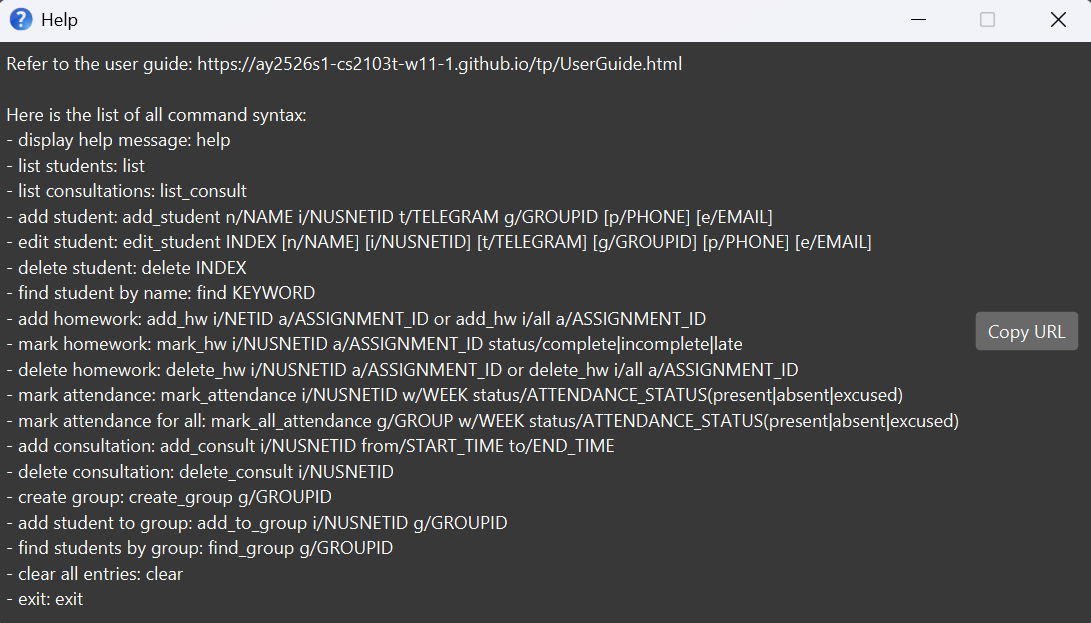
Viewing help : help
Shows a message summarising all commands and displays a URL link that directs user to the user guide.
Format: help
List Commands
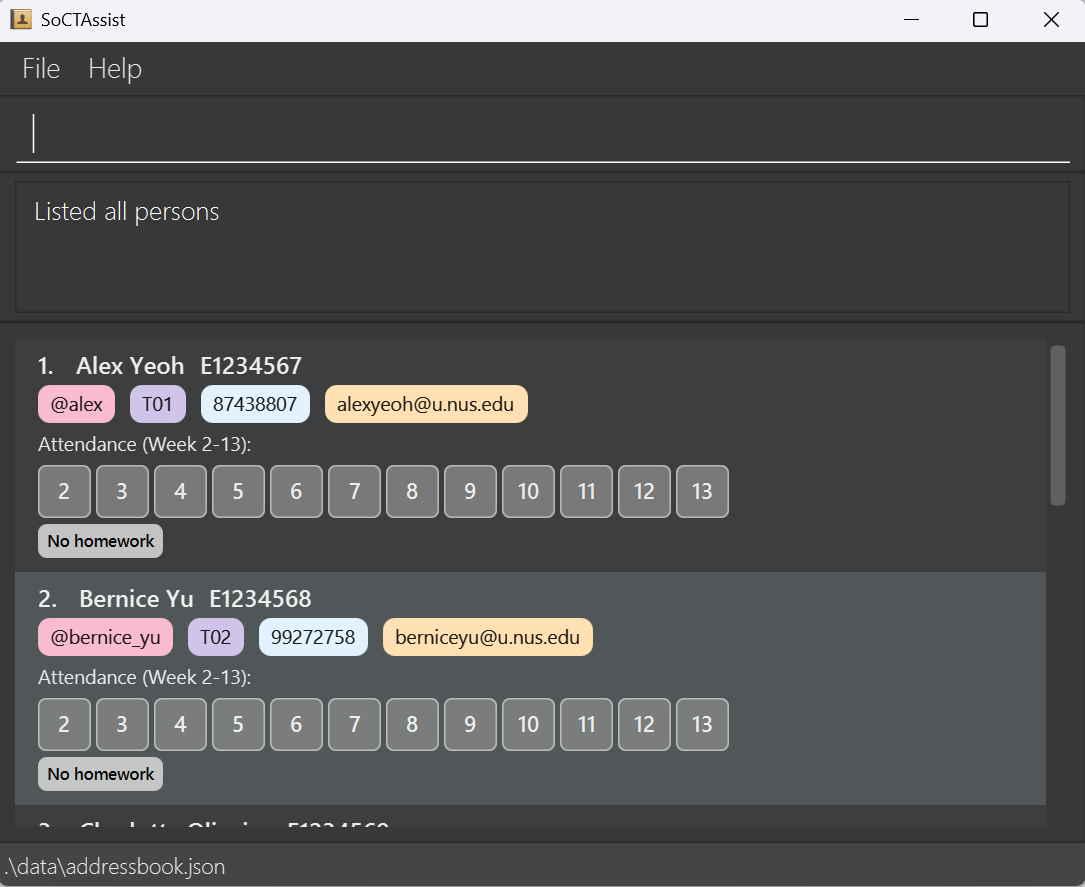
Listing all students : list
Shows a list of all students in the SoCTAssist.
Format: list
Listing all consultations : list_consult
Displays list of all consultations in the SoCTAssist.
Format: list_consult
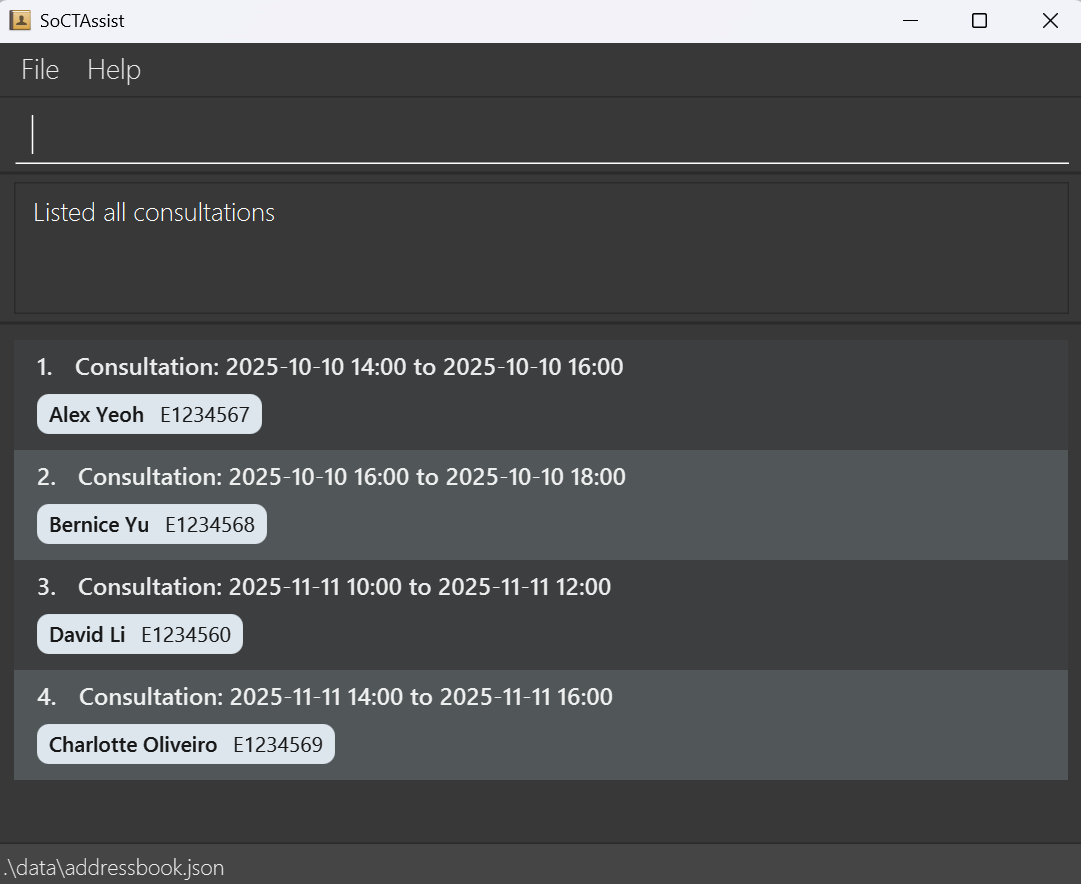
- Consultations will be sorted according to their start date & time, with the earliest consultation on top.
Note:
- After using
list_consultcommand, index inedit_studentanddeletecommands will refer to the global index of the student (index displayed afterlistcommand). - Users are highly recommended to use
listcommand to find out the global index of the student before usingedit_studentordeletecommands. - Users can use
listcommand to return to the full student list view.
Student Commands
Adding a student: add_student
Adds a student to the SoCTAssist.
Format: add_student n/NAME i/NUSNETID t/TELEGRAM g/GROUPID [p/PHONE_NUMBER] [e/EMAIL]
Tip: Phone and email are optional. You can omit either or both when adding a student.
- The parameter constraints can be found above.
- The duplicate checking is done in the fields of NUSNET ID, Telegram handle, phone number and email. Currently, the exact duplicated field will not be reported in the error message. User needs to find the duplicated field manually.
Examples:
add_student n/John Doe i/E1234567 t/@handle g/T01(no phone or email)add_student n/John Doe i/E1234567 t/@handle g/T01 p/98765432 e/johnd@u.nus.eduadd_student n/Betsy Crow i/E1234562 p/1234567 t/@betsy g/T02 e/betsycrowe@u.nus.edu
Editing a student : edit_student
Edits an existing student in the SoCTAssist.
Format: edit_student INDEX [n/NAME] [i/NUSNETID] [t/TELEGRAM] [p/PHONE] [e/EMAIL]
- Edits the student at the specified
INDEX. The index refers to the index number shown in the displayed student list. The index must be a positive integer, e.g. 1, 2, 3, … - At least one of the fields must be provided to change the student's details.
- Existing values will be updated to the input values.
- You CANNOT use this command to change the tutorial group that this student belongs to. Use the
add_to_groupcommand instead. - The duplicate checking is done in the fields of NUSNET ID, Telegram handle, phone number and email. Currently, the exact duplicated field will not be reported in the error message. User needs to find the duplicated field manually.
- You can use
p/to remove the phone number ore/to remove the email address of a student by leaving the parameter value empty. - The parameter constraints can be found above.
Examples:
edit_student 1 p/91234567 e/johndoe@u.nus.eduEdits the phone number and email address of the 1st student to be91234567andjohndoe@u.nus.edurespectively.edit_student 2 n/Betsy CrowerEdits the name of the 2nd student to beBetsy Crower.edit_student 2 p/will remove the phone number of the 2nd student.
Deleting a student : delete
Deletes the specified student from the SoCTAssist.
Format: delete INDEX
- Deletes the student at the specified
INDEX. - The index refers to the index number shown in the displayed student list.
- The index must be a positive integer 1, 2, 3, …
- If the user is in the list_consult view, use list to go back to the main view before using the
deletecommand.
Examples:
listfollowed bydelete 2deletes the 2nd student in the displayed student list.find Betsyfollowed bydelete 1deletes the 1st student in the results of thefindcommand.
Finding students by name: find
Finds students whose names contain any of the given keywords.
Format: find KEYWORD [MORE_KEYWORDS]
- The search is case-insensitive. e.g
hanswill matchHans - The order of the keywords does not matter. e.g.
Hans Bowill matchBo Hans - Only the name is searched.
- Only full words will be matched e.g.
Hanwill not matchHans - Students matching at least one keyword will be returned (i.e.
ORsearch). e.g.Hans Bowill returnHans Gruber,Bo Yang. - Users can use
listcommand to return to the full student list view.
Examples:
find DoereturnsDoeandJohn Doe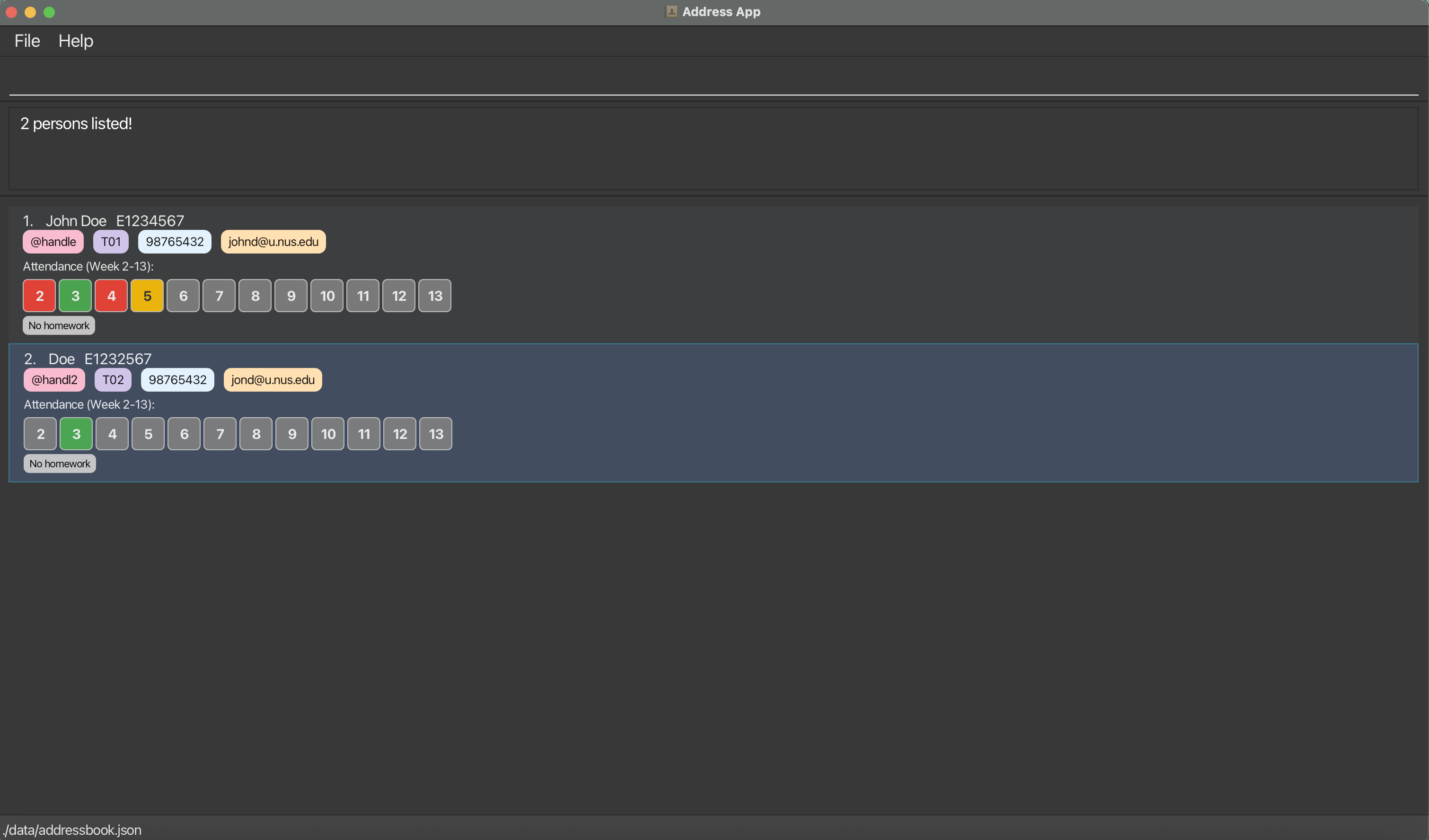
Homework Commands
Adding homework : add_hw
Adds a homework assignment for the specified student or for all students.
Format: add_hw i/NUSNETID (use 'i/all' for all students) a/ASSIGNMENT_NUMBER
- Adds the homework with the given assignment number for the specified student.
- If
i/allis used, the homework is added for all students. - The user can add homework to all students as long as at least one of the students do not have the homework yet. (i.e., adding homework is successful if no one has the homework or some of them have the homework, and is unsuccessful if all students already have the homework).
- The newly added homework will have a default status of
incomplete. - The assignment number should be a positive integer between 1 to 13.
- If adding homework for a specific student, NUSNET ID is used. The NUSNET ID and homework number must be valid.
- The parameter constraints can be found above.
- The system will check the validity of command format, followed by validity of input, the existence of the student, and lastly whether the homework has been added already.
Examples:
add_hw i/E1234567 a/1adds assignment 1 for the student with NUSNET IDE1234567, if it is not already added.
add_hw i/all a/2adds assignment 2 for all students.
Marking homework : mark_hw
Marks the homework status for the specified student.
Format: mark_hw i/NUSNETID a/ASSIGNMENT_NUMBER status/STATUS
- Marks the specified assignment for the given student with the specified status. The same homework can be marked for several times, and the most recent status will be saved.
- The assignment number should be a positive integer between 1 to 13.
- The assignment must exist for the student.
- The
STATUScan be one of the following:complete,incomplete, orlate. - The NUSNET ID, homework number and status must be valid.
- The parameter constraints can be found above.
- The system will check the validity of command format, followed by validity of input, the existence of the student, and lastly whether the homework can be marked (i.e., whether the homework exists for the student).
Examples:
mark_hw i/E1234567 a/1 status/completemarks assignment 1 as complete for studentE1234567.
mark_hw i/E1234568 a/2 status/latemarks assignment 2 as late for studentE1234568.
Deleting homework : delete_hw
Deletes the homework for the specified student or for all students.
Format: delete_hw i/NUSNETID (use 'i/all' for all students) a/ASSIGNMENT_NUMBER
- Deletes the homework with the given assignment number for the specified student.
- The assignment number should be a positive integer between 1 to 13, and the assignment must exist for the student.
- If
i/allis used, the homework is deleted for all students. - The user can add homework to all students as long as at least one of the students have the homework. (i.e., deleting homework is successful if everyone has the homework or some of them have the homework, and is unsuccessful if none of the students has the homework).
- The NUSNET ID and homework number must be valid.
- The parameter constraints can be found above.
- The system will check the validity of command format, followed by validity of input, the existence of the student, and lastly whether the student has the homework.
Examples:
delete_hw i/E1234567 a/1deletes assignment 1 for the student with NUSNET IDE1234567.
delete_hw i/all a/2deletes assignment 2 for all students.
[!IMPORTANT] Only adding and deleting homework can be done to all student. Marking homework cannot be done for all students, since tutors are expected to mark each student's homework one by one.
Attendance Commands
Marking attendance for one student: mark_attendance
Marks the attendance status for the specified student and week.
Format: mark_attendance i/NUSNETID w/WEEK status/ATTENDANCE_STATUS
- Marks attendance for the given student and week.
- Week number must between 2 to 13.
- NUSNET ID can start with E and has 7 numbers, and it should not be blank.
- The
ATTENDANCE_STATUScan be one of the following:present,absent, orexcused. - The NUSNET ID, week number and status must be valid.
- The parameter constraints can be found above.
- The system will check the validity of command format, followed by validity of input, and lastly the existence of the student.
Examples:
mark_attendance i/E1234567 w/3 status/presentmarks studentE1234567as present for week 3.
mark_attendance i/E2345678 w/5 status/absentmarks studentE2345678as absent for week 5.
Marking attendance for one group of students : mark_all_attendance
Marks the attendance status for all the students in one tutorial group in a specified week.
Format: mark_all_attendance g/GROUPID w/WEEK status/ATTENDANCE_STATUS
- Marks attendance for the given tutorial group of student and week.
- week number must between 2 to 13.
- Group IDs should start with T or B (case-insensitive) and be followed by strictly 2 digits.
- The
ATTENDANCE_STATUScan be one of the following:present,absent, orexcused. - The groupId, week number and status must be valid.
- The parameter constraints can be found above.
- The system will check the validity of command format, followed by validity of input, and lastly the existence of the group.
- After attendance taking, users can use
listcommand to return to the full student list view.
Examples:
mark_all_attendance g/T01 w/3 status/presentmarks all students in group T01 as present for week 3.
mark_all_attendance g/T01 w/5 status/absentmarks all students in group T01 as absent for week 5.
Consultation Commands
Adding a consultation : add_consult
Adds a consultation session for the specified student.
Format: add_consult i/NUSNETID from/DATE_TIME to/DATE_TIME
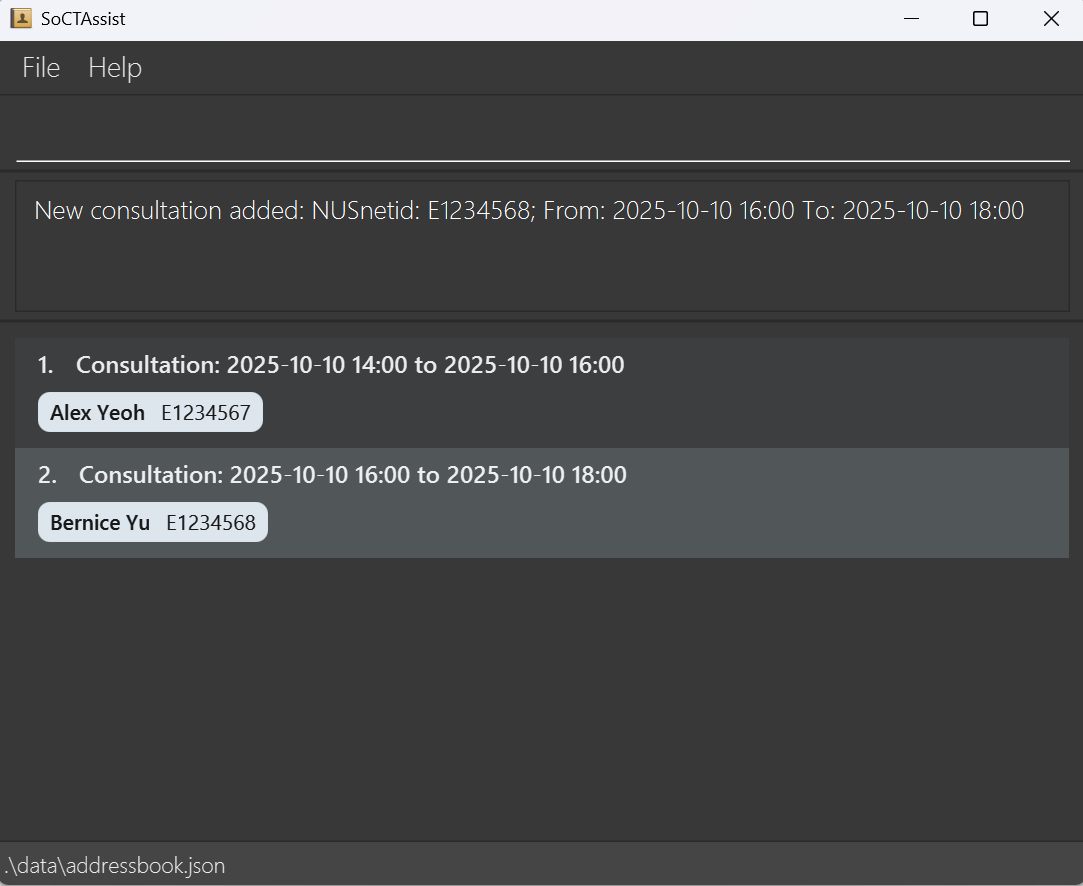
- Both start (
from) and end (to) times must be inyyyyMMdd HHmmformat. - The start time must be earlier than the end time**.
- The NUSNET ID, start time and end time must be valid.
- The parameter constraints can be found above.
- A consultation cannot be added to a student who already has an existing consultation. (i.e. Each student can only have one assigned consultation)
- A consultation cannot overlap with other existing consultations. (i.e. Students can only have one-to-one consultations)
Examples:
add_consult i/E1234567 from/20251010 1400 to/20251010 1600adds a consultation from 2–4PM on 10 Oct 2025 for studentE1234567.add_consult i/E2345678 from/20240920 1000 to/20240920 1100adds a consultation from 10–11AM on 20 Sep 2024 for studentE2345678.
Note:
- After using
add_consultcommand, user will be brought to consultation list view. Index inedit_studentanddeletecommands will refer to the global index of the student (index displayed afterlistcommand). - Users are highly recommended to use
listcommand to find out the global index of the student before usingedit_studentordeletecommands. - Upon returning to student list view, newly added consultation will be reflected under the student.
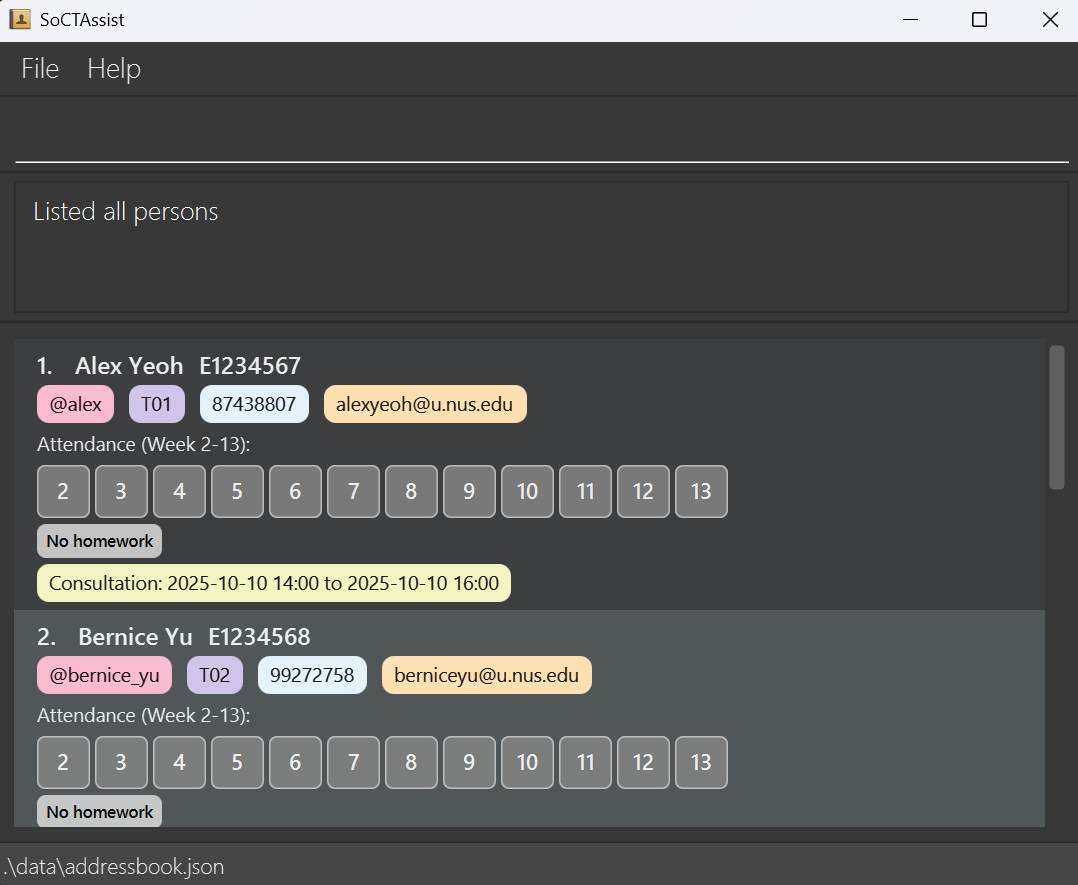
Deleting a consultation : delete_consult
Deletes a consultation session for the specified student.
Format: delete_consult i/NUSNETID
- Deletes the consultation for the specified student.
- The NUSNET ID must be valid.
- The parameter constraints can be found above.
Examples:
delete_consult i/E1234567deletes consultation for studentE1234567.delete_consult i/E2345678deletes consultation for studentE2345678.
Note:
- After using
delete_consultcommand, user will be brought to consultation list view. Index inedit_studentanddeletecommands will refer to the global index of the student (index displayed afterlistcommand). - Users are highly recommended to use
listcommand to find out the global index of the student before usingedit_studentordeletecommands.
Group Commands
Creating a group : create_group
Creates a new tutorial group.
Format: create_group g/GROUPID
- Creates a new group with the specified group ID.
- The group ID must be unique. If a group with the same ID already exists, an error message will be shown.
- Group IDs typically follow the format
TXX(for tutorial) orBXX(for lab), whereXXare exactly 2 digits (from 0 to 9).
Examples:
create_group g/T03creates a new group with IDT03.create_group g/B05creates a new group with IDB05.
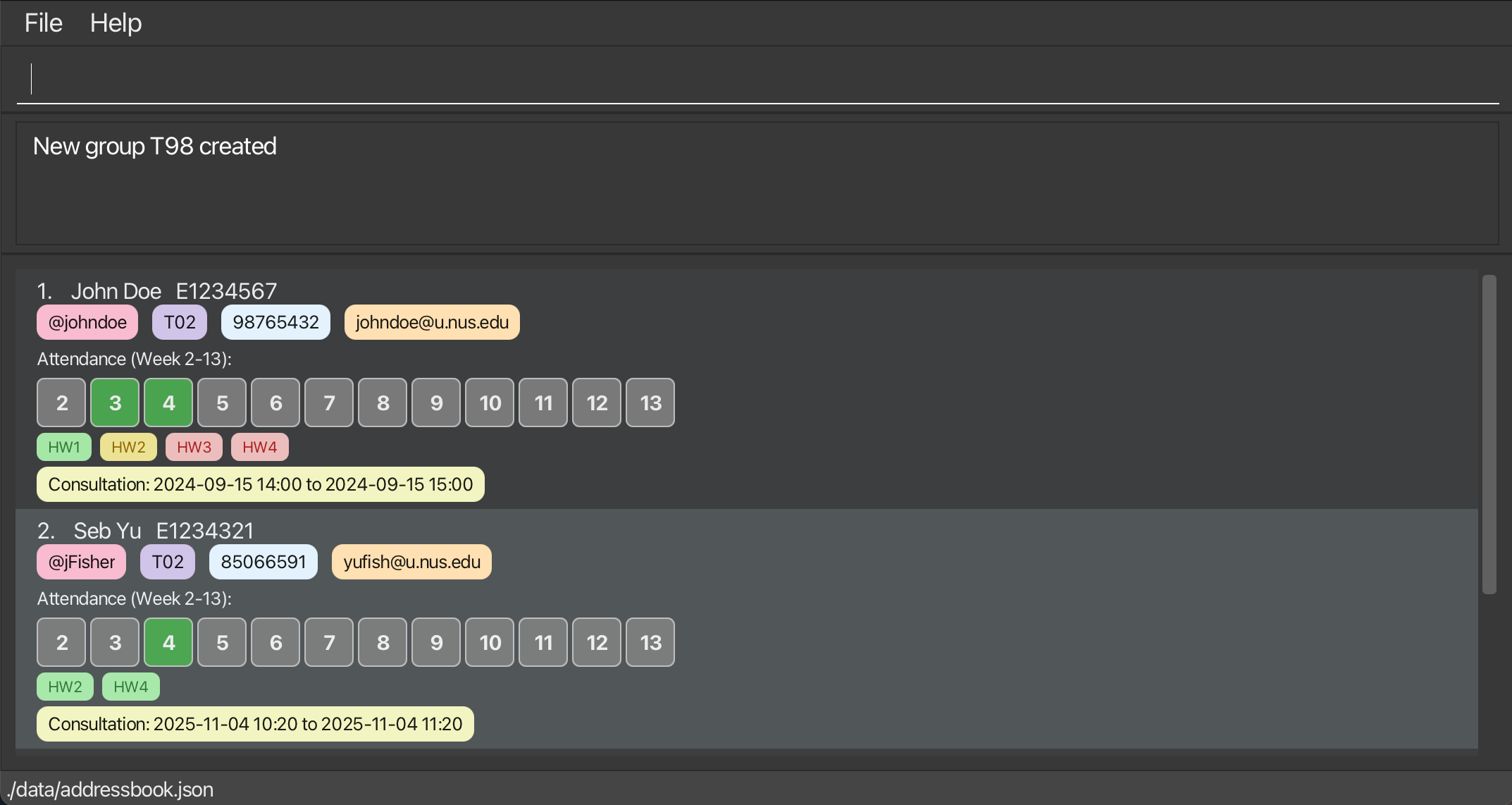
Adding a student to a group : add_to_group
Adds a student to a tutorial group.
Format: add_to_group i/NUSNETID g/GROUPID
- move a student with the specified NUSNET ID to a new group with the specified group ID.
- If the specified group does not exist, it will be created.
- If the group exists, the student will be added to that new group.
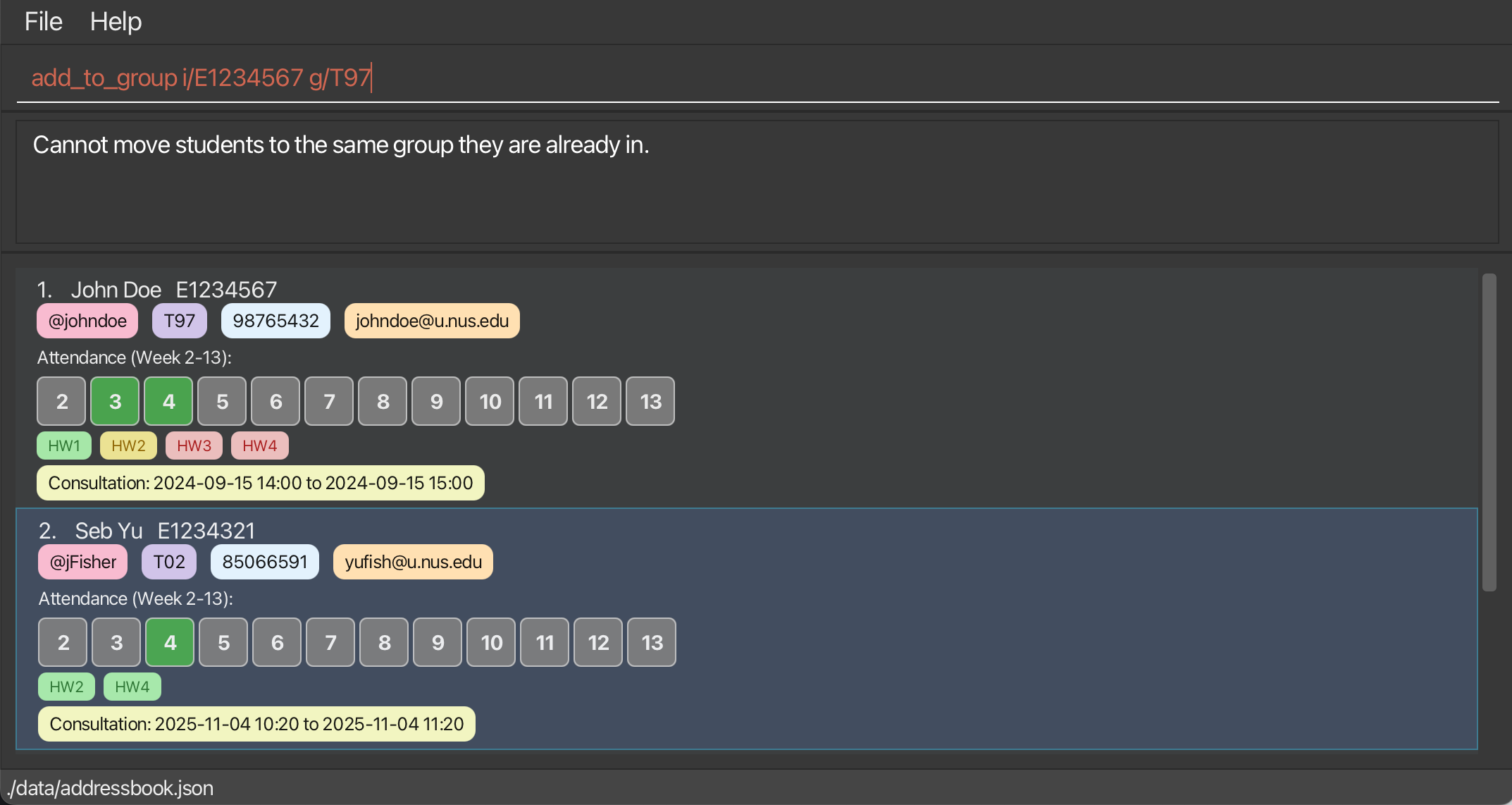
- Student cannot be moved to the same group they are already in; an error message will be shown in such cases.
- Since a student can only belong to one group at a time, adding them to a new group will remove them from their previous group.
- The NUSNET ID and group ID must be valid.
Examples:
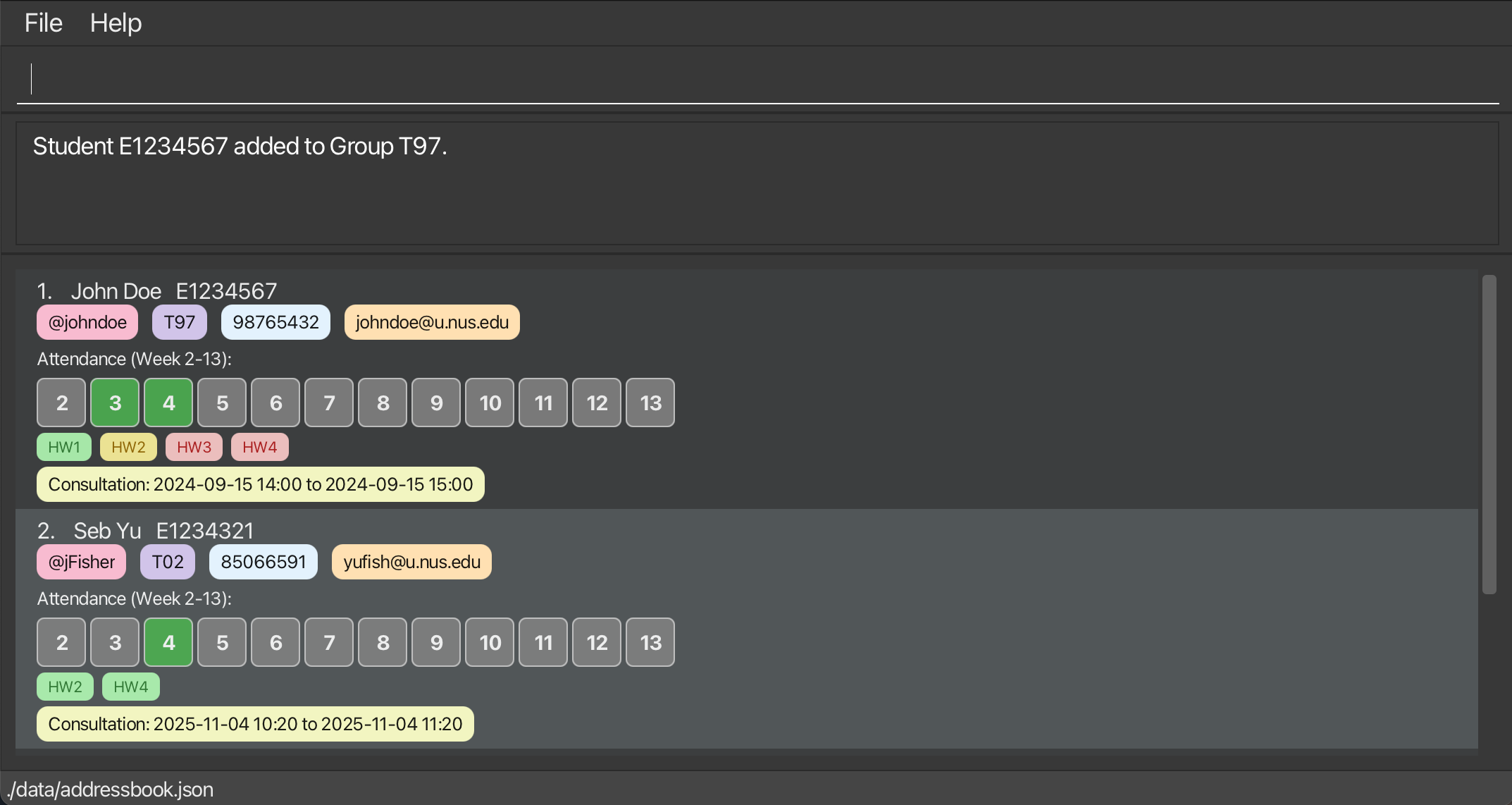
add_to_group i/E1234567 g/T03move student with NUSNET IDE1234567from current group to groupT03.add_to_group i/E2345678 g/B05(assume group B05 does not exist initially) create groupB05and move studentE2345678to it.Successfully adding student to a group:
Cannot add student to the same group they are already in:
Finding group members : find_group
Finds all members in a specified tutorial group.
Format: find_group g/GROUPID
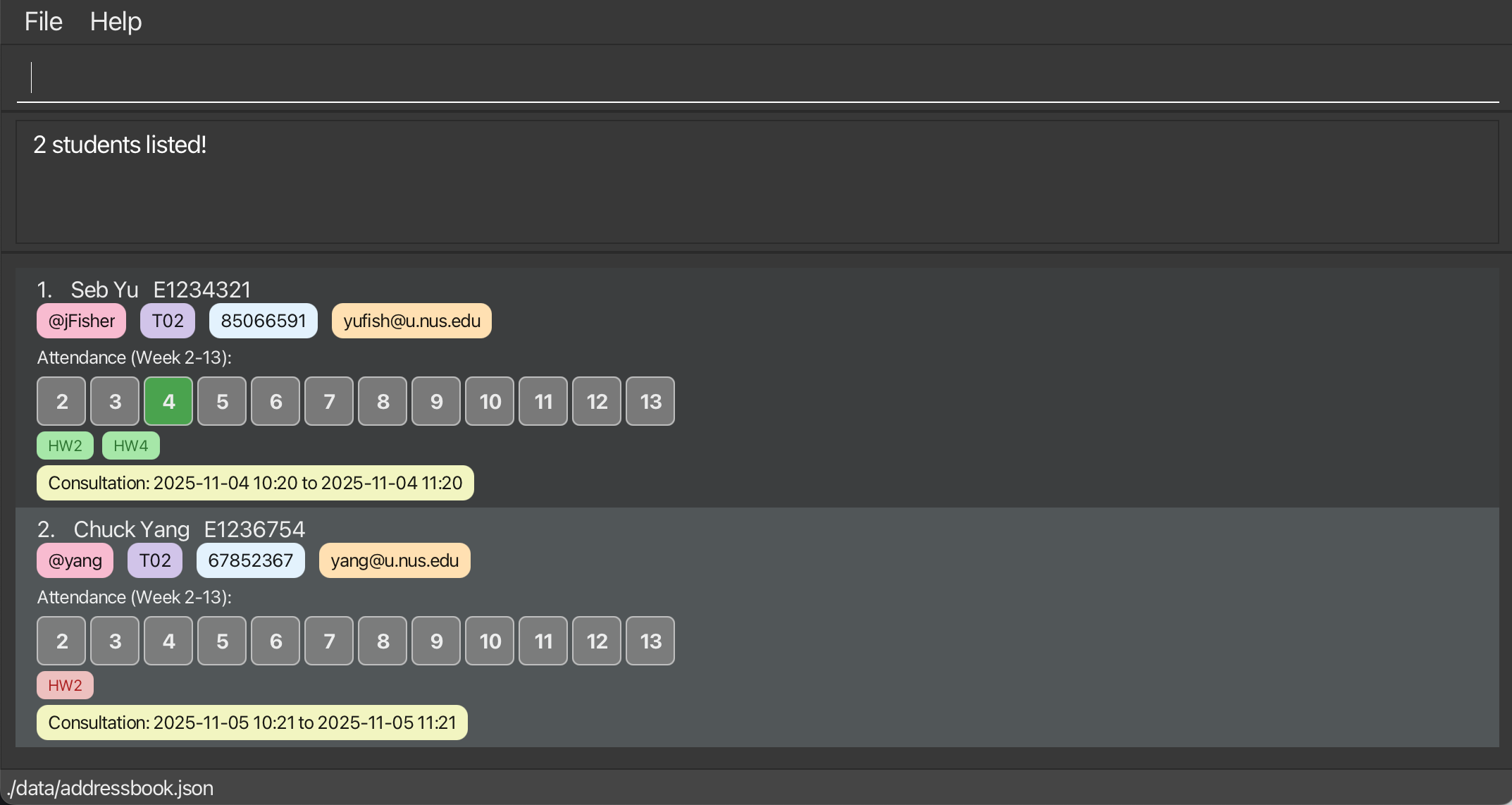
- Displays all students belonging to the specified group.
- The group ID must be valid.
- Users can use
listcommand to return to the full student list view. - If the specified group has no members, a message will be shown.
Examples:
find_group g/T03displays all members in groupT03.find_group g/B05displays all members in groupB05.
Clearing all entries : clear
Clears all entries from the SoCTAssist.
- Deletes all students, groups and consultations from the SoCTAssist
Format: clear
Exiting the program : exit
Exits the program.
Format: exit
Undoing a command : undo
Undoes the most recent modifying command and restores the address book to its previous state.
Format: undo
Examples:
- After adding a student with
add_student n/John i/E1234567 t/@john g/T01, typingundowill remove the student. - After clearing all data with
clear, typingundowill restore all deleted data.
Limitations:
- You can undo up to 20 steps.
- Read-only commands (e.g.,
list,find,help) do not count as steps and cannot be undone. - After undoing, if you execute a new modifying command, the undone steps are discarded and cannot be redone.
- Undo history is not preserved across sessions (closing the app clears the history).
Redoing a command : redo
Redoes the most recently undone command.
Format: redo
Examples:
- After using
undoto reverse anadd_studentcommand, typingredowill re-add the student. - You can redo multiple times if you have undone multiple steps.
Limitations:
- You cannot redo if you have executed a new modifying command after the last undo (the redo history is cleared).
- Redo history is not preserved across sessions.
Saving the data
SoCTAssist data are saved in the hard disk automatically after any command that changes the data. There is no need to save manually.
Editing the data file
SoCTAssist data are saved automatically as a JSON file in JAR file_location/data/addressbook.json.
Users are NOT recommended to edit the data file directly, but if you need to do so, please follow these guidelines:
- Ensure that the JSON format is valid after editing.
- Ensure that all fields have valid values according to the specifications of SoCTAssist.
[!CAUTION] If your changes to the data file makes its format invalid, SoCTAssist will discard all data and start with an empty data file at the next run. Hence, it is recommended to take a backup of the file before editing it.
Furthermore, certain edits can cause the SoCTAssist to behave in unexpected ways (e.g., if a value entered is outside the acceptable range). Therefore, edit the data file only if you are confident that you can update it correctly.
FAQs
Q: How do I back up or transfer my data to another computer?
A: Copy the data file at file_location/data/addressbook.json from your current machine and replace the same file on the other machine. Close the app before copying to avoid partial writes.
Q: Are phone and email mandatory when adding a student?
A: No. p/PHONE and e/EMAIL are optional. Example: add_student n/John i/E1234567 t/@john g/T01 (no phone/email).
Q: What is a valid NUSNET ID format?
A: An E (case-insensitive) followed by 7 digits, e.g. E1234567.
Q: Can I target all students at once for homework commands?
A: Yes. Use i/all with homework commands, e.g. add_hw i/all a/2 or delete_hw i/all a/2.
Q: Do homework/attendance/consultation commands use index or NUSNET ID?
A: They use NUSNET ID. For example, mark_hw i/E1234567 a/1 status/complete and mark_attendance i/E1234567 w/3 status/present.
Q: What values are valid for assignment numbers?
A: Positive integers from 1 to 13.
Q: What is the valid range for attendance week?
A: Weeks 2 to 13 inclusive.
Q: What’s the valid format for group IDs?
A: Start with T or B (case-insensitive) followed by exactly two digits, e.g., T01, B04.
Q: How do I mark attendance for an entire tutorial group?
A: Use mark_all_attendance g/GROUPID w/WEEK status/STATUS, e.g. mark_all_attendance g/T01 w/3 status/present.
Q: How do consultation times work and what conflicts are checked?
A: Use YYYYMMDD HHmm for from/ and to/, and ensure start is earlier than end. A student can have at most one consultation, and consultation times cannot overlap with another student’s consultation.
Q: After running list_consult, why do some indices not match what I see?
A: list_consult shows consultations; student edit/delete still use the global student index from list. Run list to return to the student list view and use those indices.
Q: Can I edit the data file manually?
A: Not recommended. If you must, ensure the JSON stays valid and values follow the app rules. Invalid edits can cause the app to reset to an empty dataset on next start.
Q: Where is the data file stored exactly?
A: By default at file_location/data/addressbook.json relative to the app’s working directory (same folder as the JAR unless configured otherwise).
Q: How do I update SoCTAssist to a newer version?
A: Download the new JAR and replace the old one. Your data in file_location/data/addressbook.json will be reused automatically. If there are breaking changes, follow any migration instructions in the release notes.
Q: Where can I find application logs for troubleshooting?
A: In the app folder as rotating files like addressbook.log, addressbook.log.0, etc. Share the latest log when reporting issues.
Q: If I change a student’s NUSNET ID, will their homework/attendance/consultation be preserved?
A: Yes. These records are linked to the student and will follow the updated NUSNET ID.
Q: Can I delete a tutorial group?
A: There is no explicit delete command for groups. Groups are created automatically when needed. Move students to other groups as required.
Q: Can I mark attendance for all students across all groups?
A: Not directly. Use mark_all_attendance per group (g/GROUPID). There is no global "all students" attendance command.
Q: How can I see a student’s homework and attendance quickly?
A: Use list to show students; details appear in the student panel. There is no separate list_hw command.
Q: What if I want to add another consultation to a student who already has one?
A: A student can only have one consultation at a time. If you want to add another consultation, please delete the existing consultation first using the delete_consult command.
Known Issues
When using multiple screens, if you move the application to a secondary screen, and later switch to using only the primary screen, the GUI will open off-screen.
Remedy: Delete the
preferences.jsonfile created by the application before running the application again.If you minimize the Help Window and then run the
helpcommand (or use theHelpmenu, or the keyboard shortcutF1) again, the original Help Window will remain minimized, and no new Help Window will appear.Remedy: Manually restore the minimized Help Window.
When using
edit_studentordeletecommands on the consultation view page, the index of student to be edited or deleted cannot be seen.Remedy: Use the
listcommand to return to the student view page to obtain the target student's index before using theedit_studentordeletecommand.
Glossary
NUSNETID: A unique identifier assigned to each student by the National University of Singapore (NUS) during matriculation. It is used for logging into various NUS systems.
NUS email: The official email address assigned to each student by NUS, typically in the format
<NUSNETID>@u.nus.edu.Tutorial Group: A smaller group of students within a course. Group IDs usually follow the format
TXXorBXX, whereXXrepresent 2 digits.Complete: The student has submitted the homework on time.
Incompleted: The student has not submitted the homework yet. When the user creates the homework, it is marked as incomplete by default.
Late: The student has submitted the homework, but has passed the deadline of the homework.
Present: The student is present for the tutorial on that week.
Excused: The student did not come for the tutorial, but has a valid reason (e.g., on MC, has competition)
Absent: The student did not come for the tutorial, and does not have a valid reason.
Ongoing: A consultation is ongoing if it has a start time before the current time and a end time after the current time.
(E.g. if the current time is
20251010 1700, a consultation from20251010 1600to20251010 1800is ongoing.)Over: A consultation is over if its end time is before the current time.
(E.g. if the current time is
20251010 1700, a consultation from20251010 1400to20251010 1600is over.)Overlap: A consultation overlaps with another consultation if its start time is before the other consultation's end time and its end time is after the other consultation's start time.
(E.g. a consultation from
20251010 1400to20251010 1600overlaps with a consultation from20251010 1559to20251010 1759but does not overlap with a consultation from20251010 1600to20251010 1800.)One-to-one: A one-to-one consultation is a consultation that only has one teaching assistant and one student.
CLI: Command Line Interface. A text-based interface used to interact with software applications by typing commands.
Week: There are 13 weeks in each academic semester in NUS, and tutorial starts in Week 3.
Assessment/Homework: Work that needs to be done and submitted by mentees, graded by tutors.
Consultation: A session where mentees can seek help from tutors regarding their academic work or other related matters.
Teaching Assistant (TA): A Teaching Assistant (TA) is a senior student who provides guidance and support to a junior student, known as a student.
GUI: Graphical User Interface. A visual interface that allows users to interact with software applications using graphical elements such as windows, icons, and buttons.
JSON: JavaScript Object Notation. A lightweight data interchange format that is easy for humans to read and write, and easy for machines to parse and generate.
JDK: Java Development Kit. A software development environment used for developing Java applications.
Jar file: A Java ARchive file. A package file format used to aggregate many Java class files and associated metadata and resources into one file for distribution.
CD: Command Directory. The current directory in which the command terminal is operating.